 lowresart
Turn Your Photo into Pastel Art
Upload any photo and apply the Pastel style — soft, rounded tiles with muted chalk-like tones on a warm parchment background. All processing runs in your browser, in seconds. No account, no install, free to use.
Open the free Studio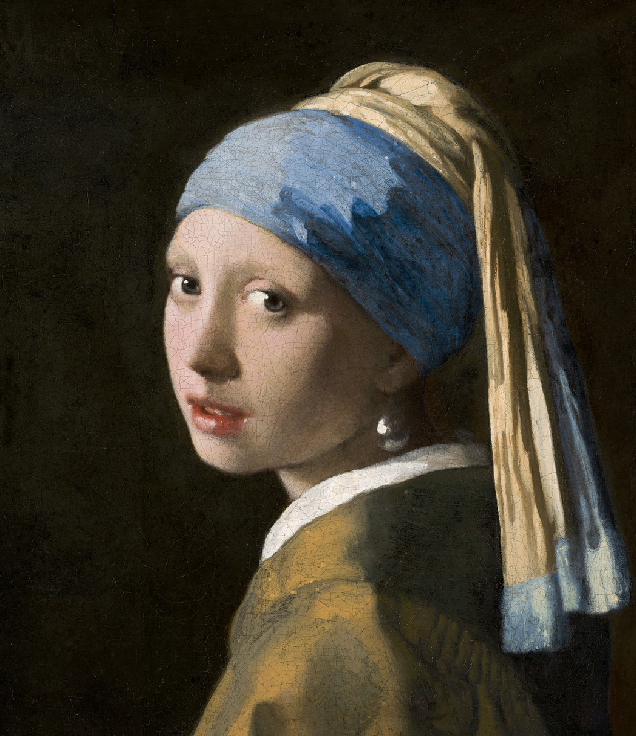
Original
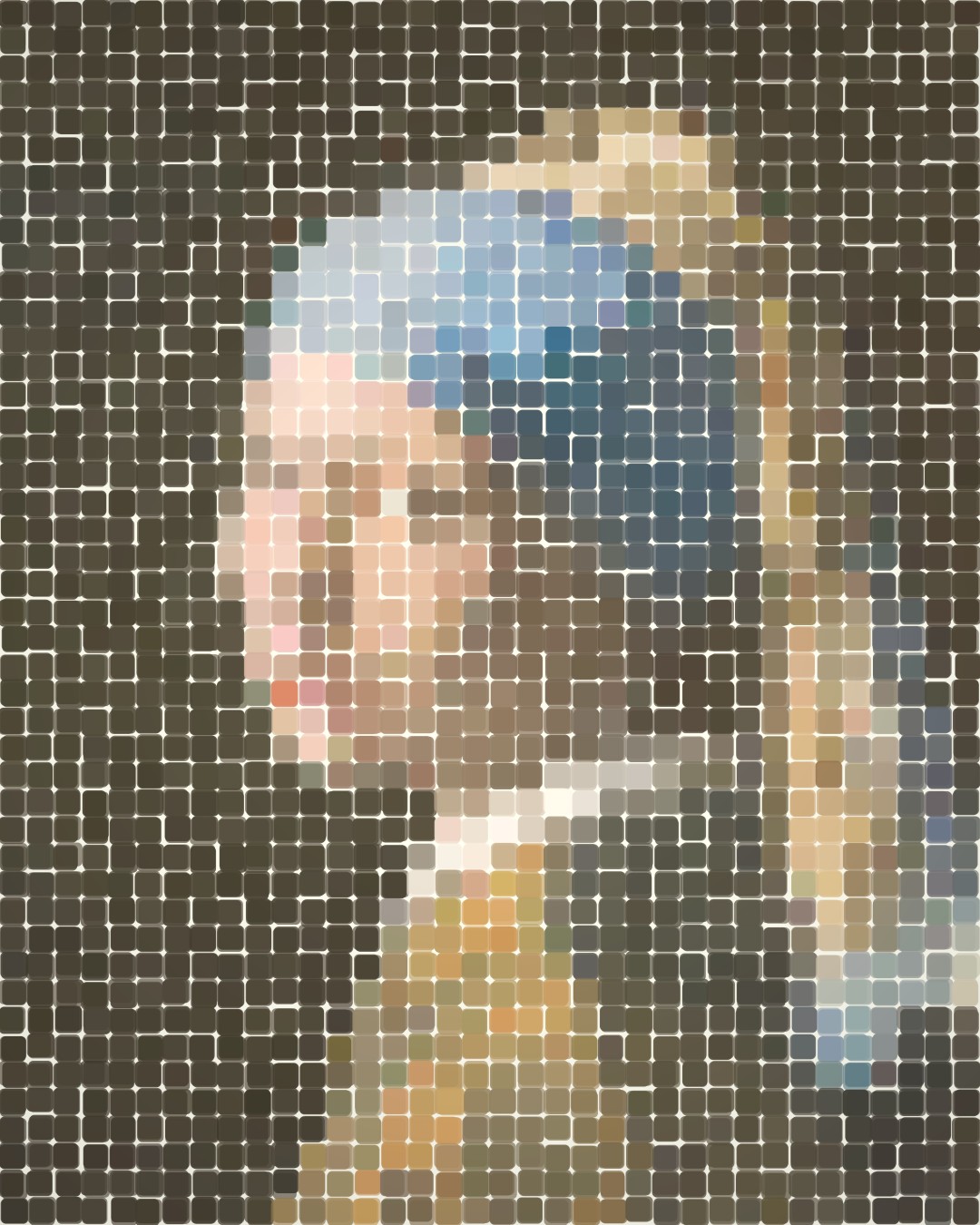
Pastel style

Original
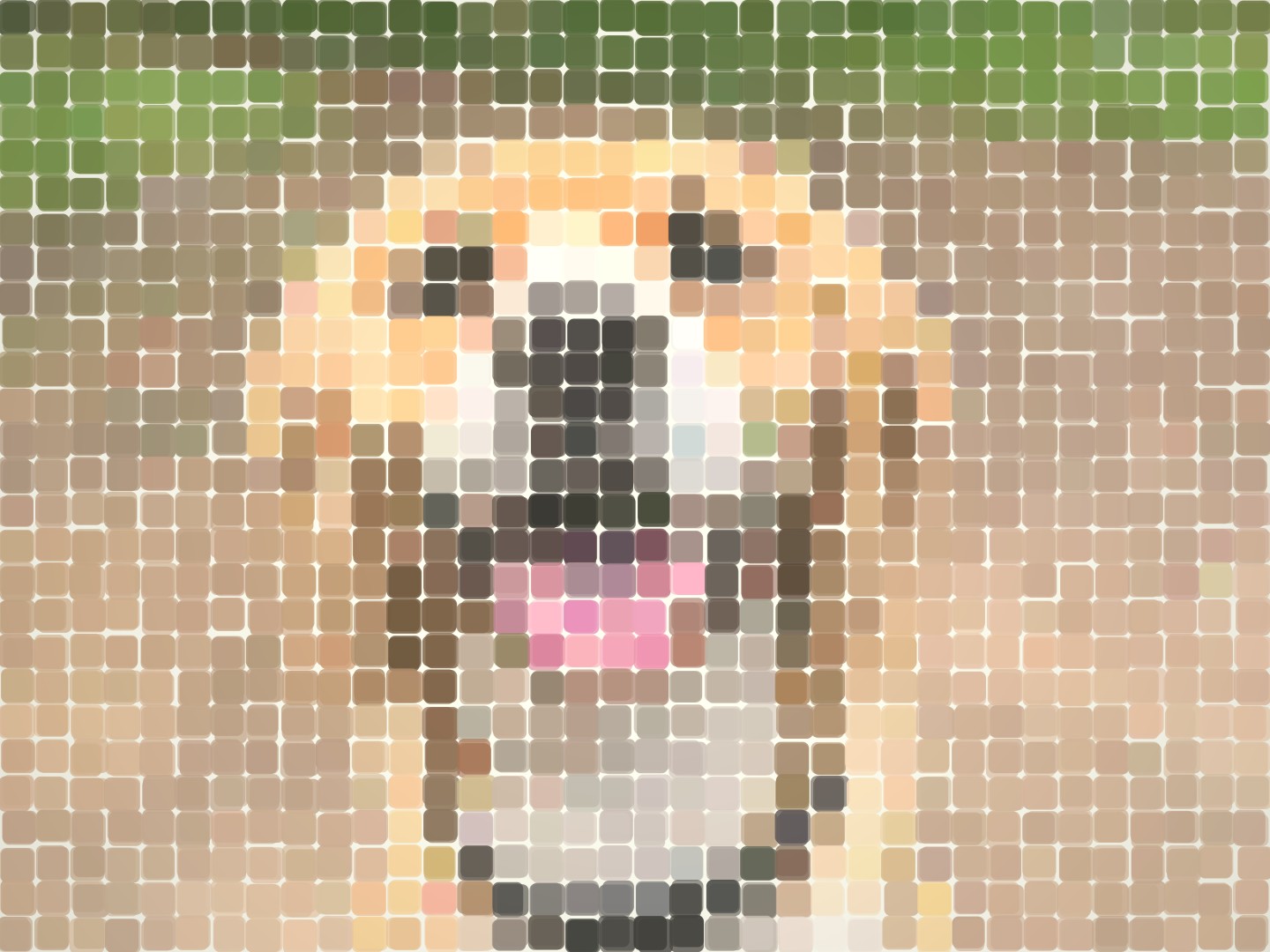
Pastel style
What makes it look like pastel?
The Pastel style is not just a colour filter. Every visual detail is designed to evoke the feel of chalk on paper — from the tile shape to the way colours are mixed.
- Chalk-like tones
- Each tile colour is mixed with a hint of warm white, giving the palette the milky, muted quality of chalk pastels.
- Soft edges
- Three semi-transparent chalk strokes are layered per tile with slight positional variation, producing a naturally blurred, hand-applied edge rather than a hard pixel boundary.
- Parchment paper
- A warm off-white background shows faintly between tiles — mimicking the texture of the paper that pastels are traditionally drawn on.
- Rounded tiles
- Each tile is a rounded rectangle rather than a hard square, reinforcing the gentle, organic feel of the style.
Tips for the best pastel result
The Pastel style is forgiving, but these inputs consistently produce the most satisfying results.
Portraits and close-ups shine
Pastel art softens hard edges and mutes colours — it's particularly flattering for faces, pets, and still lifes. Wide landscape shots can work too, especially with a reduced pixel count.
Gentle, even lighting
Unlike the Brush or Relief styles, Pastel doesn't rely on strong contrast for its effect. Soft, diffused light — window light, overcast outdoors — is ideal. Avoid harsh shadows.
Reduce saturation for authenticity
Real pastels and chalk are pigment mixed with white. Lowering the Studio's Saturation slider to −20 / −30 nudges the palette toward the muted, dusty tones that define pastel art.
Larger tiles, softer mood
Bigger tiles mean fewer, softer shapes — which suits the quiet, dreamy quality of pastel work. Try 22–30 tiles across as a starting point, then adjust to taste.
- Free Studio — unlimited previews and tweaks
- All styles and presets included
- Order a canvas print in one click
- Printed and delivered by our partner
No account needed. Pay only when you order a print.
FAQ
- What does the Pastel style look like?
- Each pixel tile is rendered as a soft, rounded patch of colour with slightly blurred edges — like chalk pressed gently onto parchment paper. Colours are automatically mixed with white to give a muted, milky tone.
- Is the tool free?
- Yes. The Studio is entirely free to use. You only pay if you choose to order a canvas print. No account, no subscription, no watermark.
- Which subjects work best with the Pastel style?
- Portraits, pet photos, and close-up still lifes tend to work best. The style softens hard edges, which flatters faces and animals. Busy scenes with lots of fine detail can look abstract at the tile level.
- Can I switch to a different style after trying Pastel?
- Yes. The Studio lets you switch between Pixel, Brush, Relief, and Pastel styles in real time. The preview updates instantly — nothing is committed until you click Order a Print.
- What resolution is the print?
- When you order, the Studio renders your image at up to 7016px on the long side — roughly A2 at 300 dpi. The soft pastel texture scales cleanly and looks warm and rich at large sizes.
Looking for something specific? Oil painting style · Pixel art pet portrait · Classic pixel art