 lowresart
Turn Your Photo into a Painting
Upload any photo and choose a painterly style — Brush for an oil-paint look, Relief for an impasto texture with visible depth. All processing runs in your browser, in seconds. No account, no install, free to use.
Open the free Studio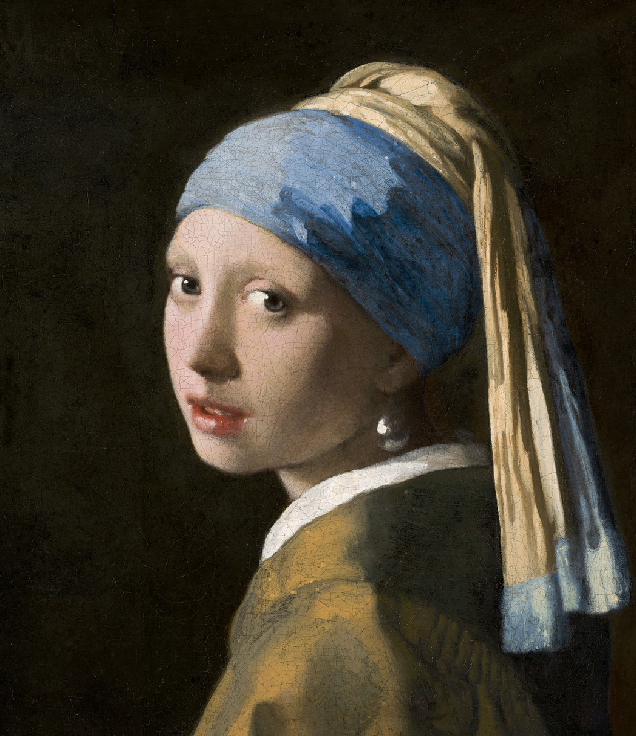
Original
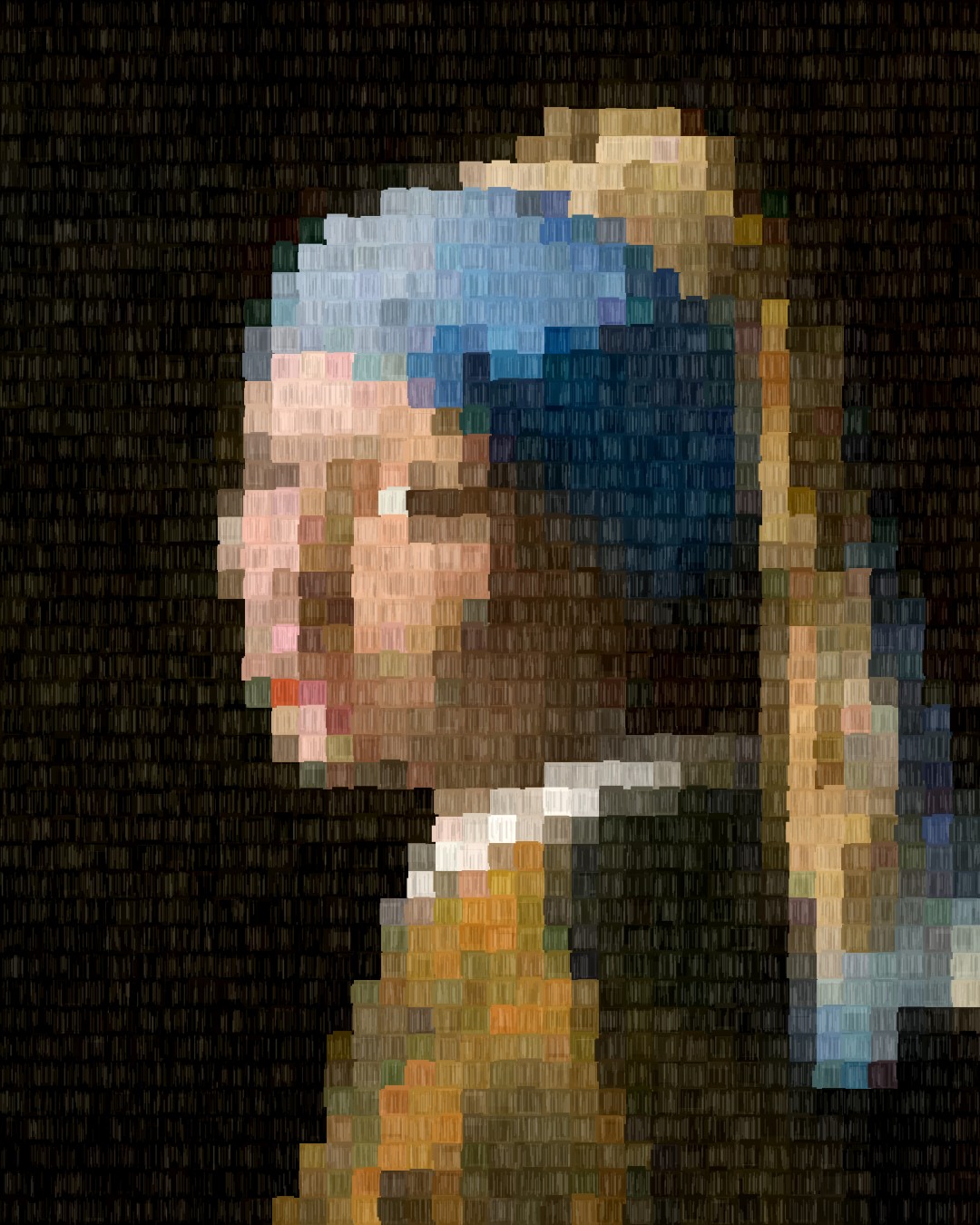
Brush style
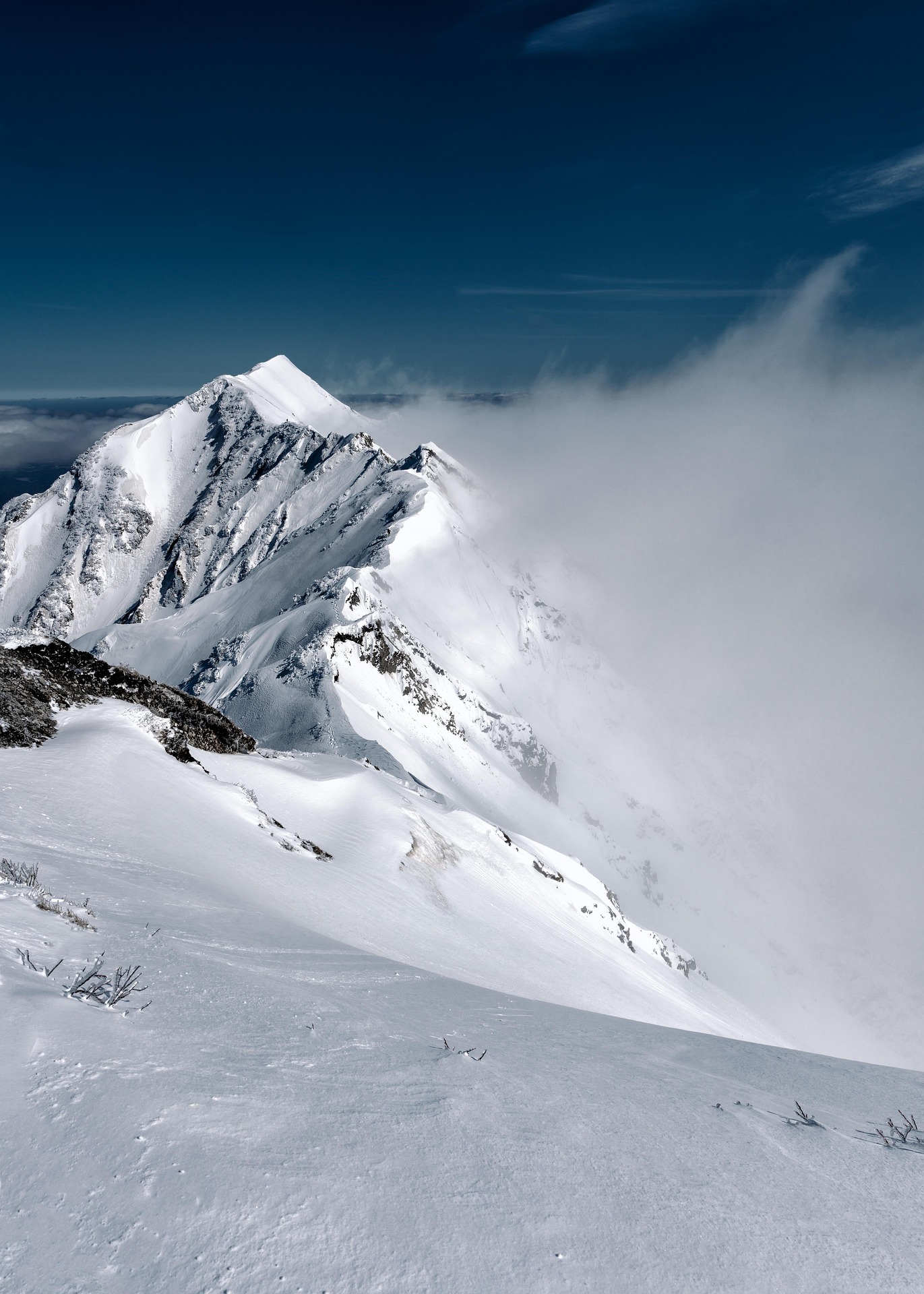
Original
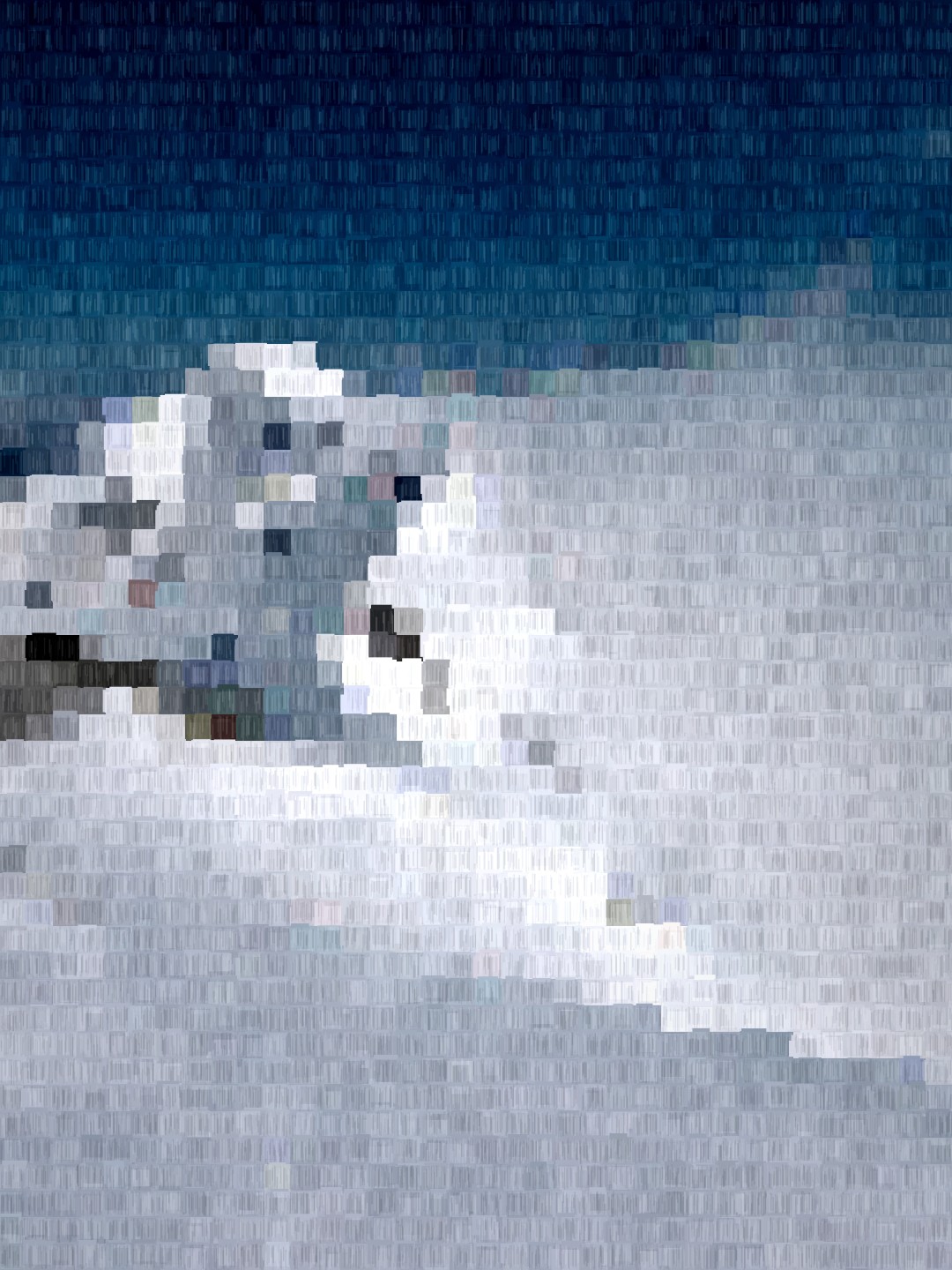
Brush style
Two painting styles, one tool
Both styles convert your photo tile by tile — the pixel grid is still there, but each tile is rendered as a patch of painted canvas rather than a flat block of colour.
Brush
Overlapping paint daubs with bristle drag marks simulate the look of oil paint applied with a wide brush. Each tile becomes a small patch of thick paint — colours vary slightly from daub to daub, just like a real canvas.
Relief
Inspired by impasto technique: each tile is rendered as a raised blob of paint, with a bright highlight at the top edge and a cast shadow at the bottom. The result is a strong sense of physical depth and texture.
What makes a great painting photo?
The painting effect works with any photo, but these inputs consistently produce the strongest results.
Strong directional light
Brush styles reward contrast. A photo with clear highlights and shadows gives each painted tile visual weight. Flat, evenly-lit photos tend to produce muddy results.
One dominant subject
Busy group shots fragment across too many tiles. A single face, animal, or landmark fills the frame, and the painterly texture becomes part of the subject rather than competing with it.
Reduce pixel size for more detail
Larger tiles give a bold, abstract painting feel. Smaller tiles produce something closer to a detailed portrait in oils. Try 18–26 tiles across for a balanced result.
Boost saturation slightly
Oil paintings are known for rich, saturated colour. The Studio's Saturation slider lets you push the palette toward a more vivid, gallery-ready look.
- Free Studio — unlimited previews and tweaks
- All styles and presets included
- Order a canvas print in one click
- Printed and delivered by our partner
No account needed. Pay only when you order a print.
FAQ
- What is the difference between Brush and Relief styles?
- Brush simulates a wide-brush oil painting: overlapping paint strokes with bristle marks. Relief is impasto — it renders each tile as a raised blob of paint with directional highlights and shadows, giving a stronger sense of physical depth.
- Is the tool free?
- Yes. The Studio is entirely free to use. You only pay if you choose to order a canvas print. No account, no subscription, no watermark.
- Can I try different styles before ordering?
- Yes. You can switch between Pixel, Brush, Relief, and Pastel styles at any time in the Studio. The preview updates in real time — nothing is committed until you click Order a Print.
- What resolution is the print?
- When you order, the Studio renders your painting at up to 7016px on the long side — roughly A2 at 300 dpi. The impasto and brush textures remain sharp and visible on large prints.
- Does my photo stay private?
- All processing runs in your browser. Your photo is never uploaded to our servers unless you explicitly click Order a Print, after which it is automatically deleted within 24 hours.
Looking for something specific? Pastel art from photo · Canvas print details · Classic pixel art